

Jeevan Pramaan Face App- Easiest Way to Make Digital Life Certificate at Home on Mobile Phone
Making Digital Life Certificate using Jeevan Pramaan Face App on a mobile phone is the easiest and fastest way to submit your DLC or life certificate from the comfort of your home.
If you are a pensioner or helping a family member with their pension, you no longer need to visit the bank or any other center to submit your annual life certificate.
Jeevan Pramaan Face App- Benefits
Most people have a mobile phone in India nowadays. India ranks second in the world in terms of the number of smartphone users. So you don’t have to buy a separate device like a fingerprint scanner for making DLC if you are using Jeevan Pramaan Face App.
Another thing is the simplicity of the process. Number of computer users in India is very much less than that of mobile phone users. For people who are not tech savvy, connecting a fingerprint scanner and installing the device driver etc may feel complicated.
Installing and running apps on smartphone and scanning the face using the mobile phone camera is a simple thing comparatively.
This guide will walk you through exactly how to generate your Digital Life Certificate (DLC) through the face authentication app on an Android mobile phone and avoid common errors.
Before You Begin: The Setup Checklist
First you have to get the required items ready. Gather the following:
- An Android smartphone (version 9.0 or above) with a working front camera and internet connection. You can do this on an iPhone as well. In this tutorial we are demonstrating it on an Android phone.
- The pensioner’s 12-digit Aadhaar number.
- The PPO (Pension Payment Order) number.
- The bank account number linked to the pension.
The Step-by-Step Guide
We are dividing the whole process into three parts.
Part 1: The “Two-App” Download (Don’t Skip This!)
The biggest point of confusion is that you actually need to download two separate apps to make this work.
Download the Aadhaar Face RD App
Go to the Google Play Store and search for “Aadhaar Face RD” .You will find the following app. Click the Install button to install it.
In the following picture you are not seeing the Install button since it was already installed.
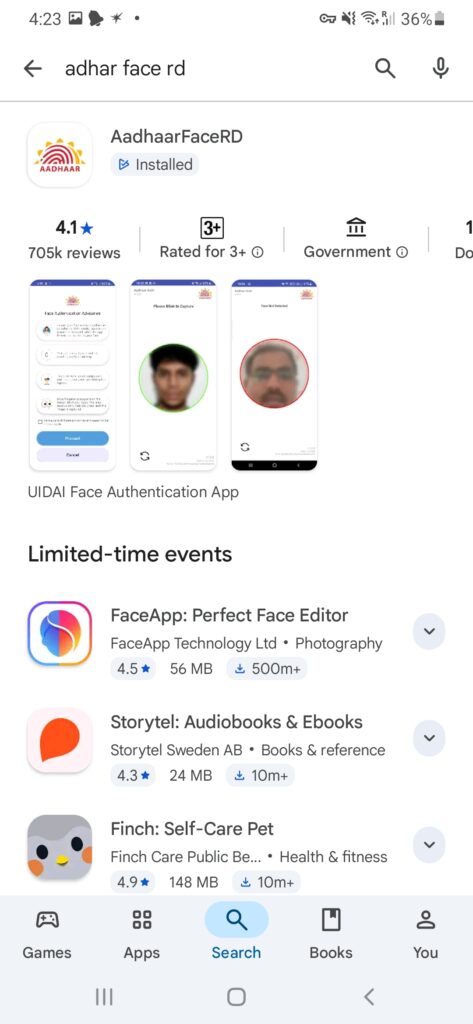
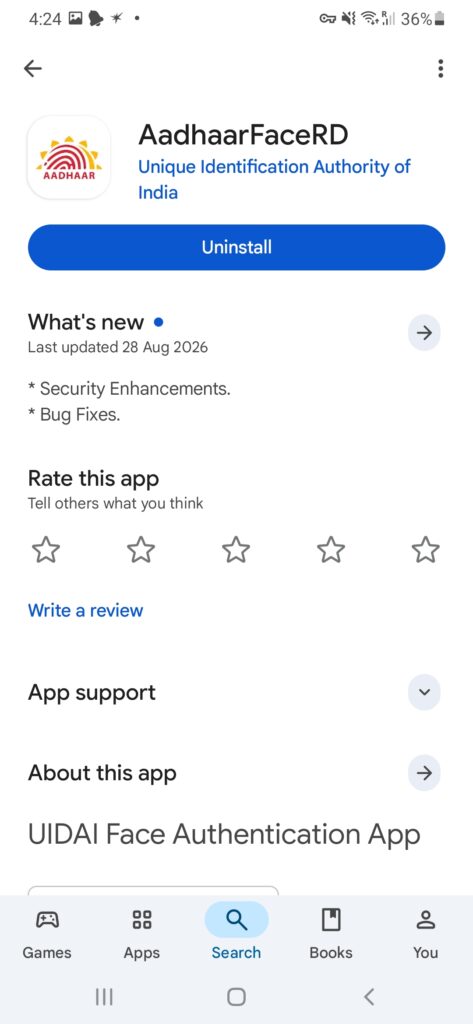
⚠️ WARNING: This app will not show an icon on your phone’s home screen after downloading. It is a background service. Do not panic if you can’t find an icon to click on it—as long as the Play Store says “Installed,” move to next step.
Download the Jeevan Pramaan Face App
Go to the Google Play Store and search for “Jeevan Pramaan ” You will find the following app. Click the Install button to install it.
In the following picture you are not seeing the Install button since it was already installed.
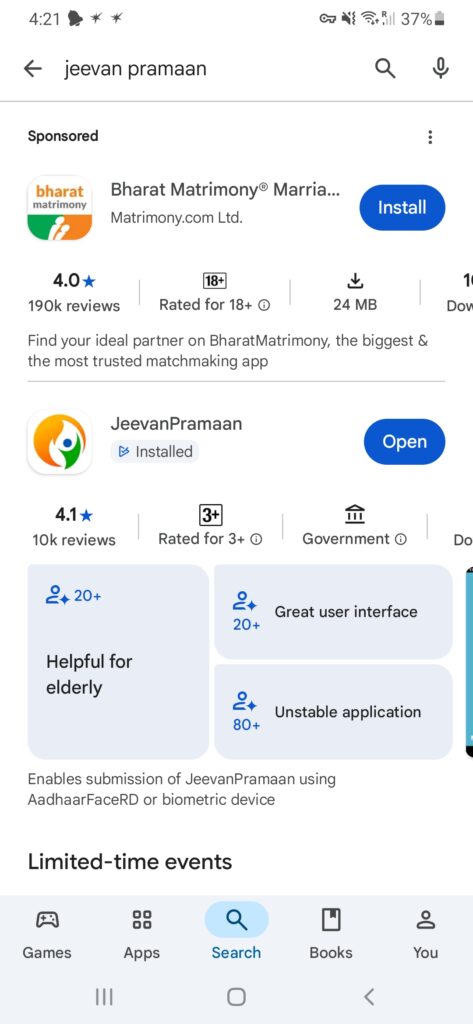
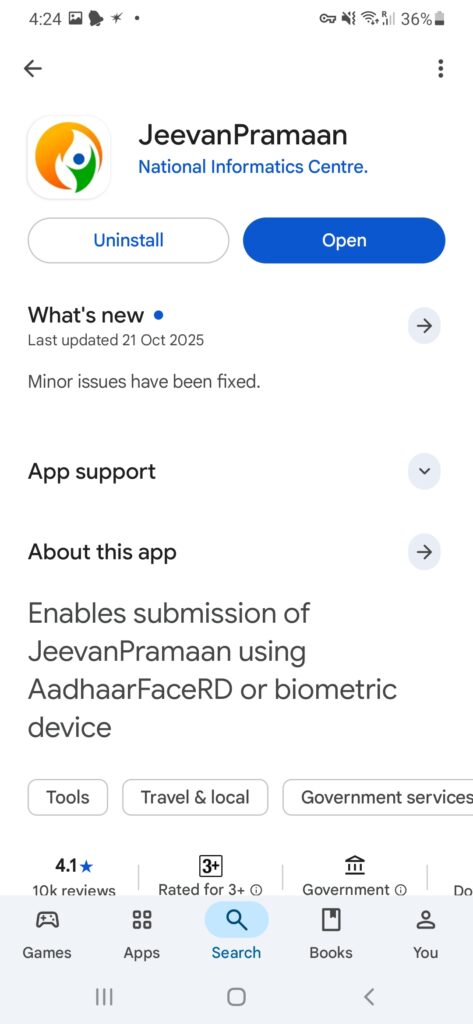
Now we have installed both the required apps. Next step is to do the Jeevan Pramaan process. It has two parts.
Part 2: Operator Authentication (One-Time Setup)
The app first requires an “Operator.” The Operator is simply the person holding the phone. It can be the pensioner themselves, or a family member helping them. An operator can submit Jeevan Pramaan for several people, after operator authentication in this step.
Enter Operator Details
Run the Jeevan Pramaan app from the mobile phone screen. Enter the Operator’s Aadhaar number, mobile number, and email address. Tap “Submit“
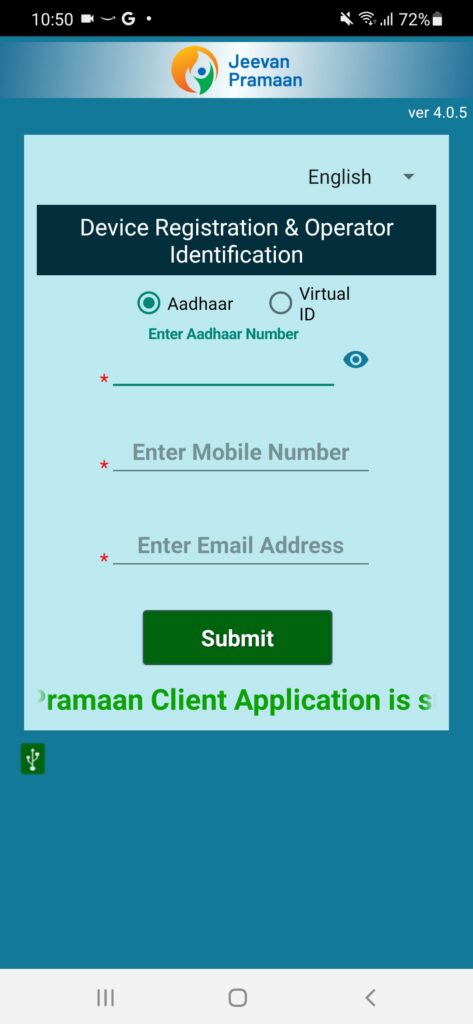
Verify OTP
Enter the One-Time Password (OTP) sent to the Operator’s mobile number.
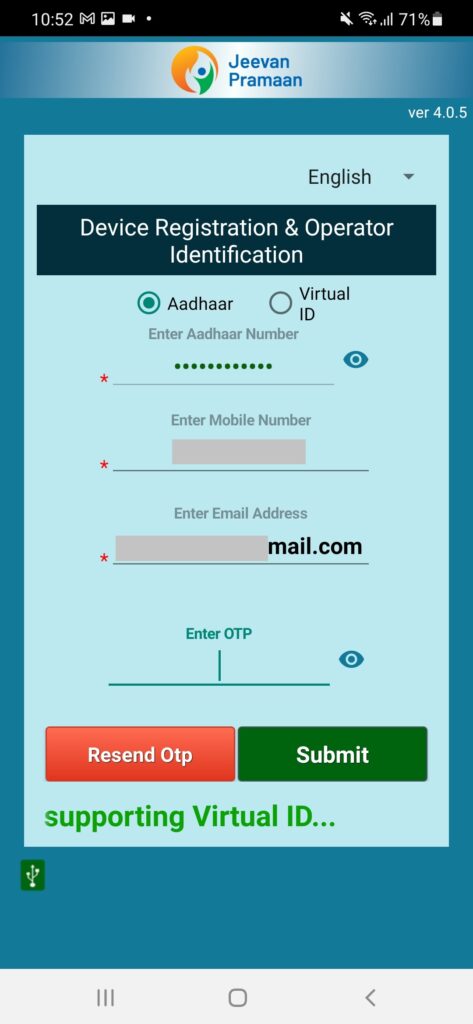
Operator Face Scan
The app will ask to scan the Operator’s face. Follow the on-screen instructions, hold still, and blink your eyes.
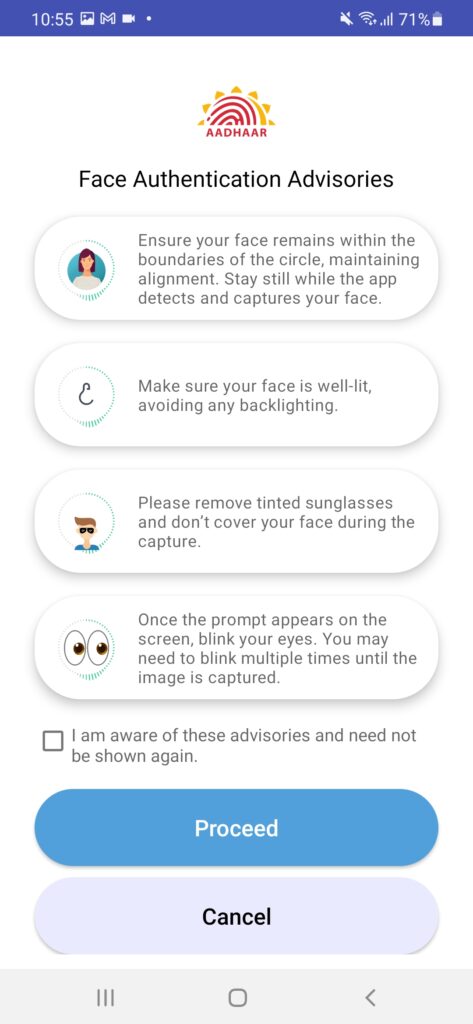
If face authentication is successful, the app is ready to do the next part, that is Pensioner Authentication or Pensioner Identification.
Please note that Operator Authentication is a one time process as told earlier. That means, hereafter whenever you run Jeevan Pramaan in this mobile phone, it will directly go to the Pensioner Authentication screen.
Part 3: Pensioner Authentication (Submitting the DLC)
Now, you will generate the actual digital life certificate (DLC) for the pensioner in this part.
Enter Pensioner Details
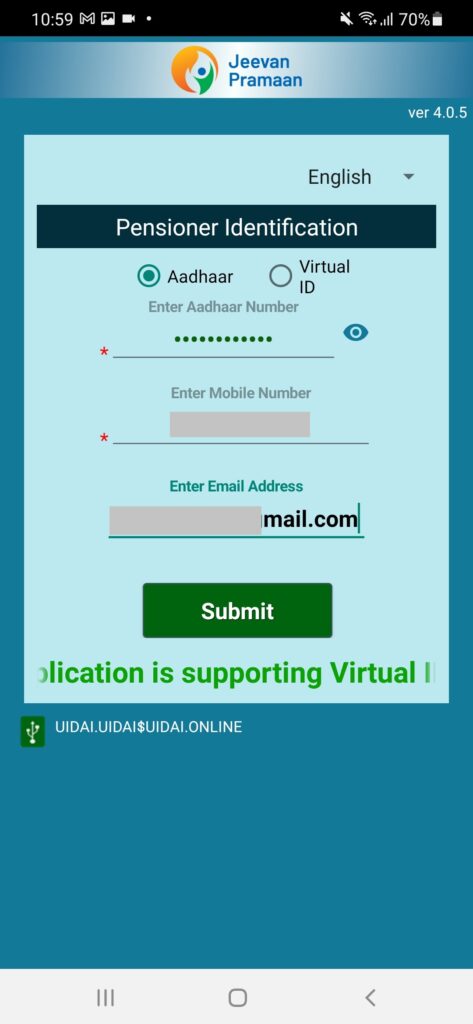
The Pensioner Authentication screen appears automatically on completion of the Operator Identification (previous part).
Enter the Pensioner’s Aadhaar number and mobile number. Email is optional. Click Submit
Verify the OTP
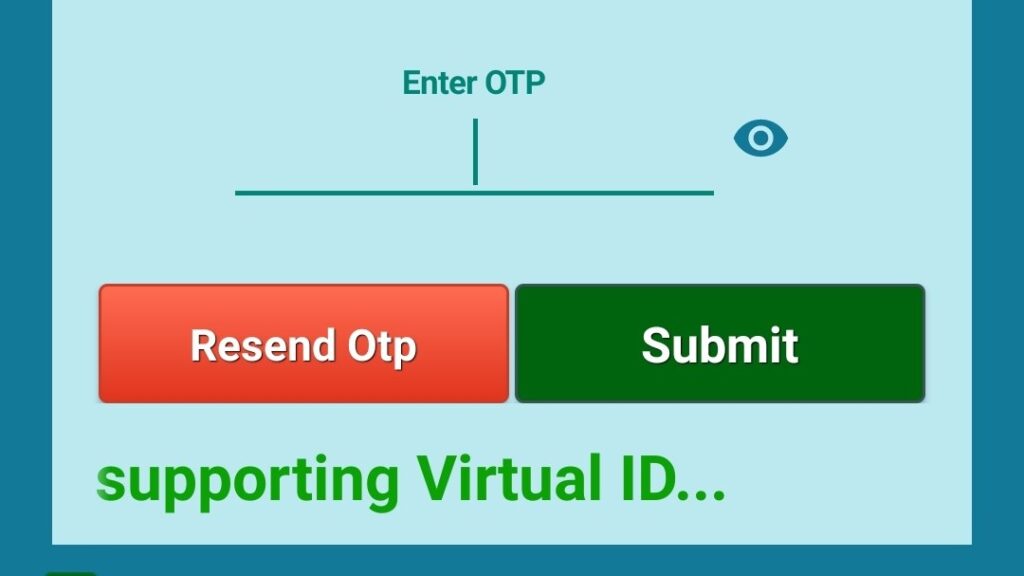
Submit the new OTP received as done in the Operator Identification part.
Now you will see the following screen to enter the pension details.
Fill in Pension Information
Carefully enter the PPO (Pension Payment Order) number, select the Pension Disbursing Agency (your bank or office), and enter the bank account number.
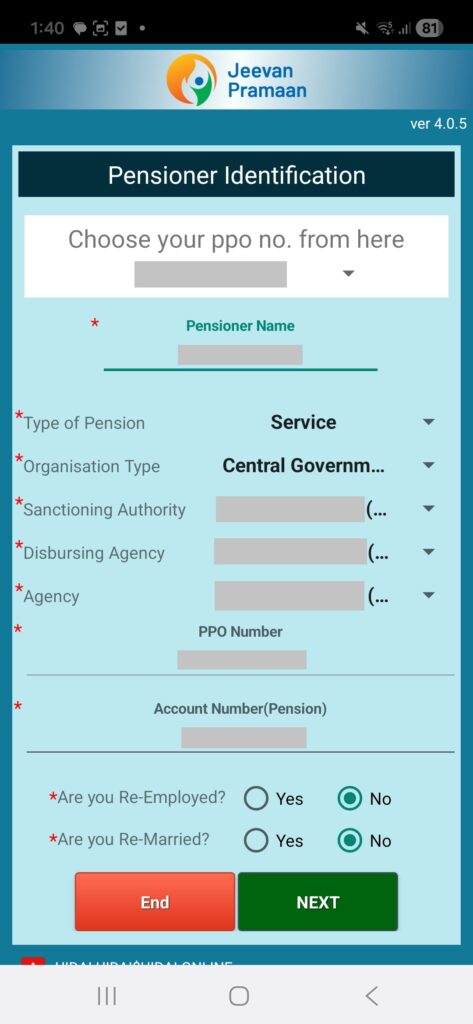
After entering the pension details, answer “Yes” or “No” to the two questions in the bottom of the screen. Press Next button.
Next time when you do DLC, when you reach this stage, the PPO number field will show a dropdown menu and you can select your PPO number. from that. Then all the pension details will appear automatically. You don’t have to manually enter it every time.
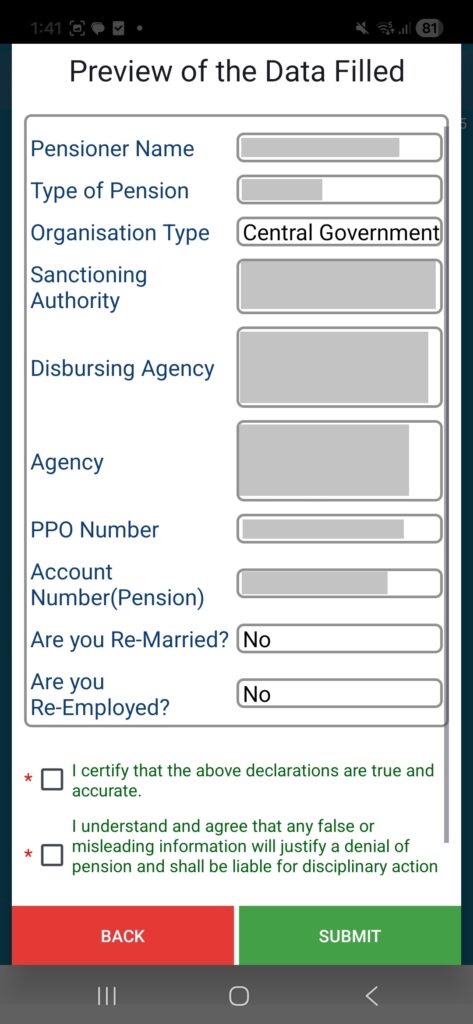
Now Preview the details, certify the two statements in the bottom of screen and click Submit as shown below.
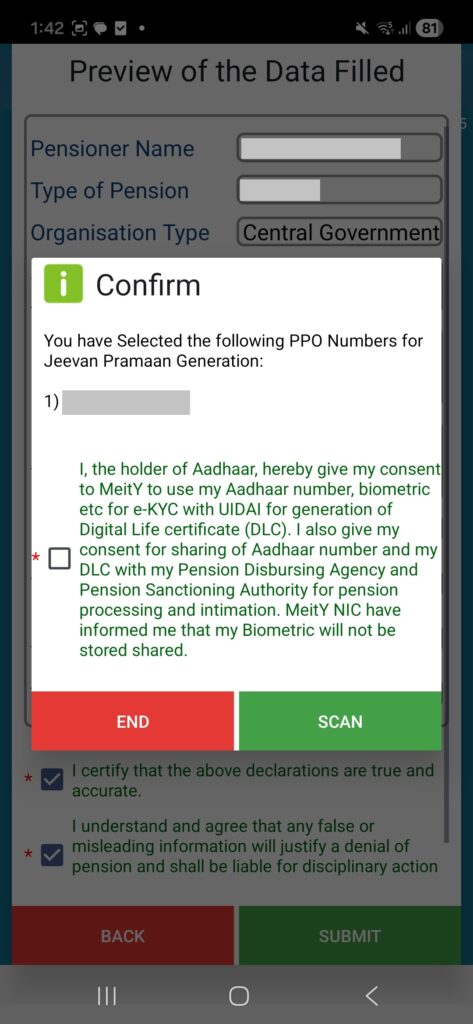
In the next screen you can see your PPO No. Give consent to use your Aadhaar number and do face scan. Press the Scan button.
The Pensioner Face Scan (Crucial Step)
This is where the actual validation happens. When the camera opens for the pensioner, follow these strict rules to avoid failure:
- Lighting: Ensure a light source (like a window or lamp) is facing the pensioner. Do not sit with a window behind the pensioner, as this creates a dark silhouette.
- Background: Sit in front of a plain wall.
- Action: The pensioner must blink during the scan. The camera will not accept a static stare.
Read the Face Authentication suggestions as given in the following screen. Confirm the check box and click Proceed button.
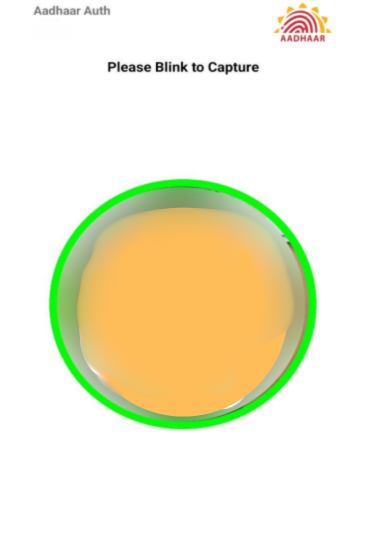
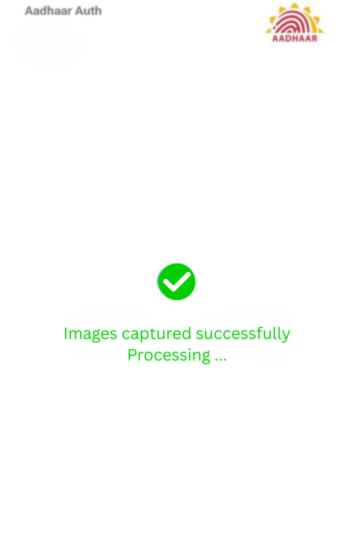
When face image capture is successful, the circle will turn green as seen above.
Confirm the Success Screen
Once the face is authenticated, a success screen will appear as shown below, displaying a photo of the pensioner and a Pramaan ID.
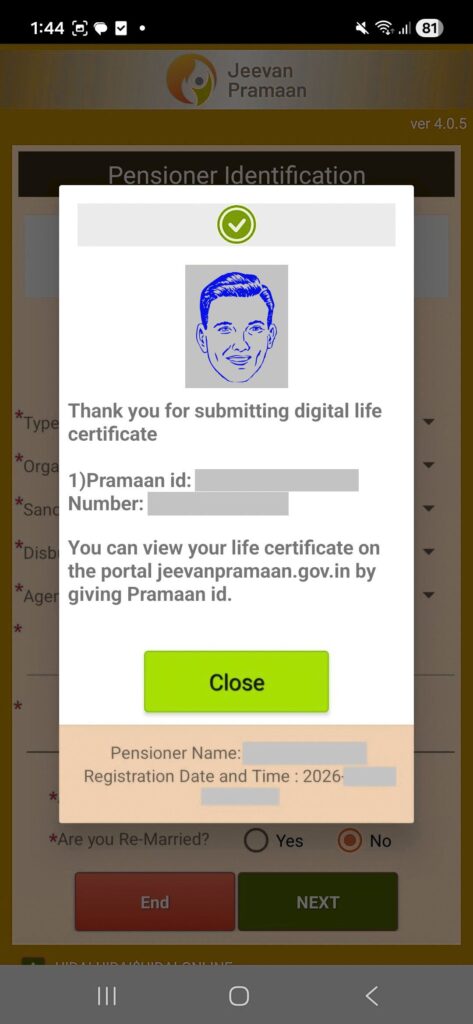
⚠️ WARNING: Take a screenshot of this screen showing the Pramaan ID or write it down immediately. This is your proof of submission. Then press the Close button.
Again you will see a confirmation screen as below. It says you have submitted Digital Certificate (DLC) for the particular PPO No. And will ask to confirm whether you have to submit DLC for any other PPO number.
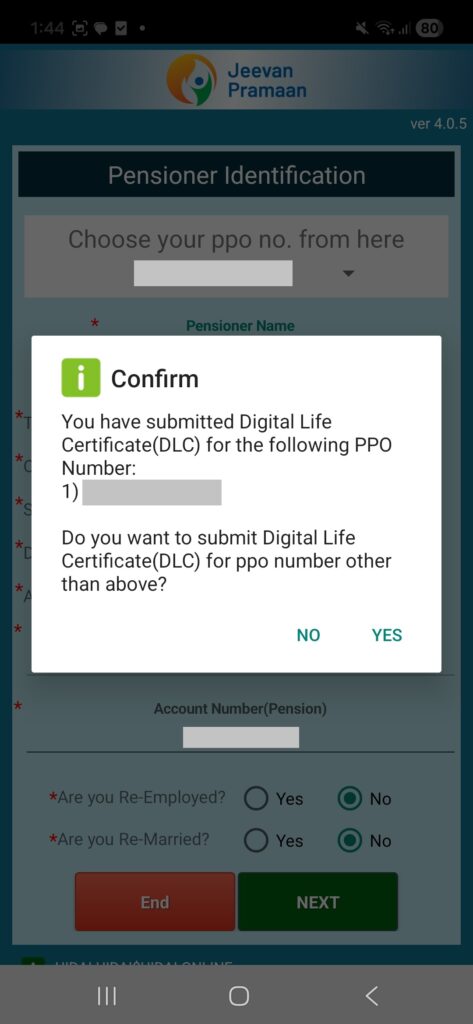
If you are a pensioner with only one pension, you can press No. The application will close now. This may be the case for most pensioners.
However, if you have pension from multiple departments, you can press Yes. If you press Yes, the app will take you to the screen to fill in pension information and and let you enter details of the next PPO and run the face authentication without starting the whole process again.
Download the DLC as PDF
You will receive a confirmation SMS in your mobile number with the Pramaan ID. You can now use your Pramaan ID to log into the Jeevan Pramaan portal on your computer or phone browser to download the final PDF copy of your Digital Life Certificate.
The downloading of PDF copy of DLC is only for your record and reference. Your pension office will be notified automatically and your pensioner identification status will be updated accordingly in your pension department.